Employee Dashboard
Your PerksPe dashboard is the first screen you see after logging in. It shows your expense status, PEP Coin balance, and recent activity — everything you need at a glance.
A personalized greeting confirms you are logged into the correct account and shows today's date.
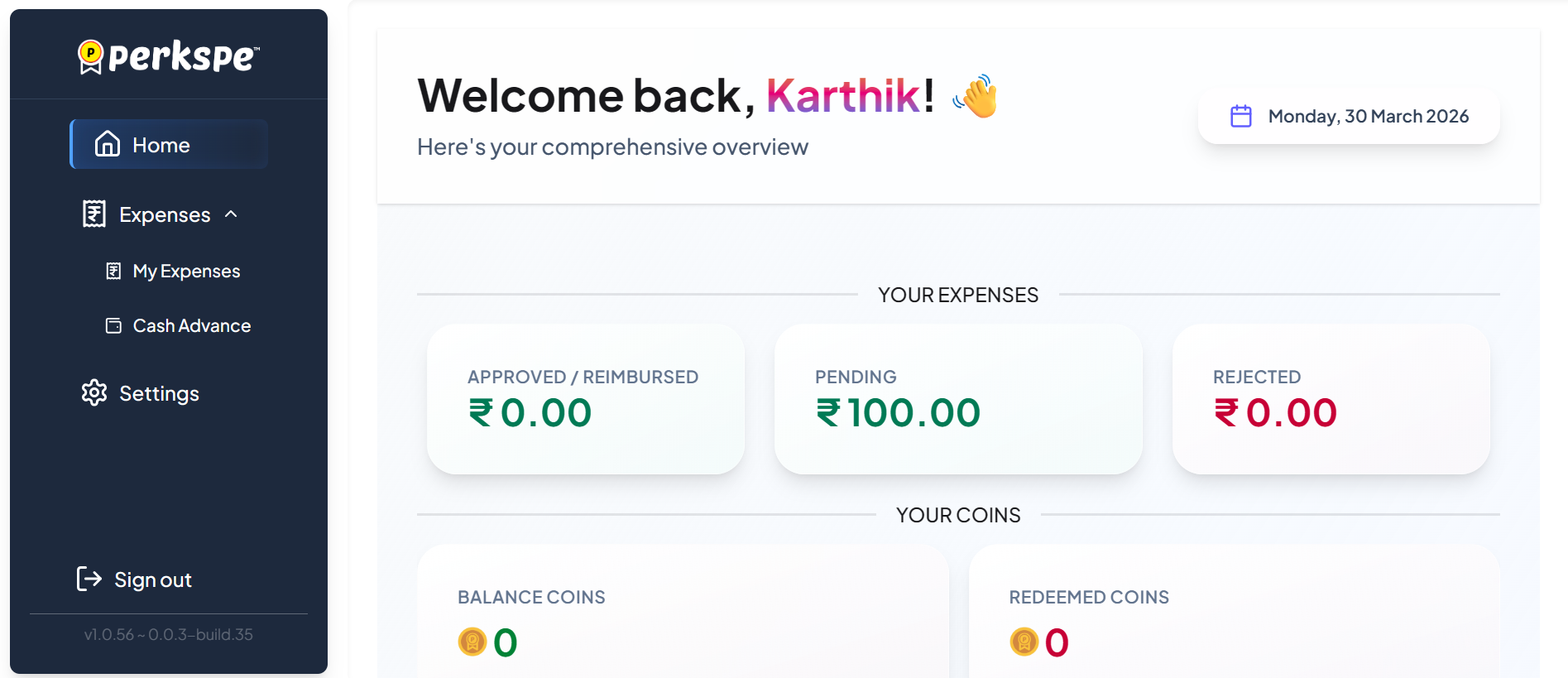
Approved & Reimbursed
Expenses fully approved and paid to your bank account.
Pending
Expenses submitted and waiting for review.
Rejected
Expenses that were declined. Read comments and resubmit.

Sidebar Menus
| Menu | What it does |
|---|---|
| Home | Return to this dashboard |
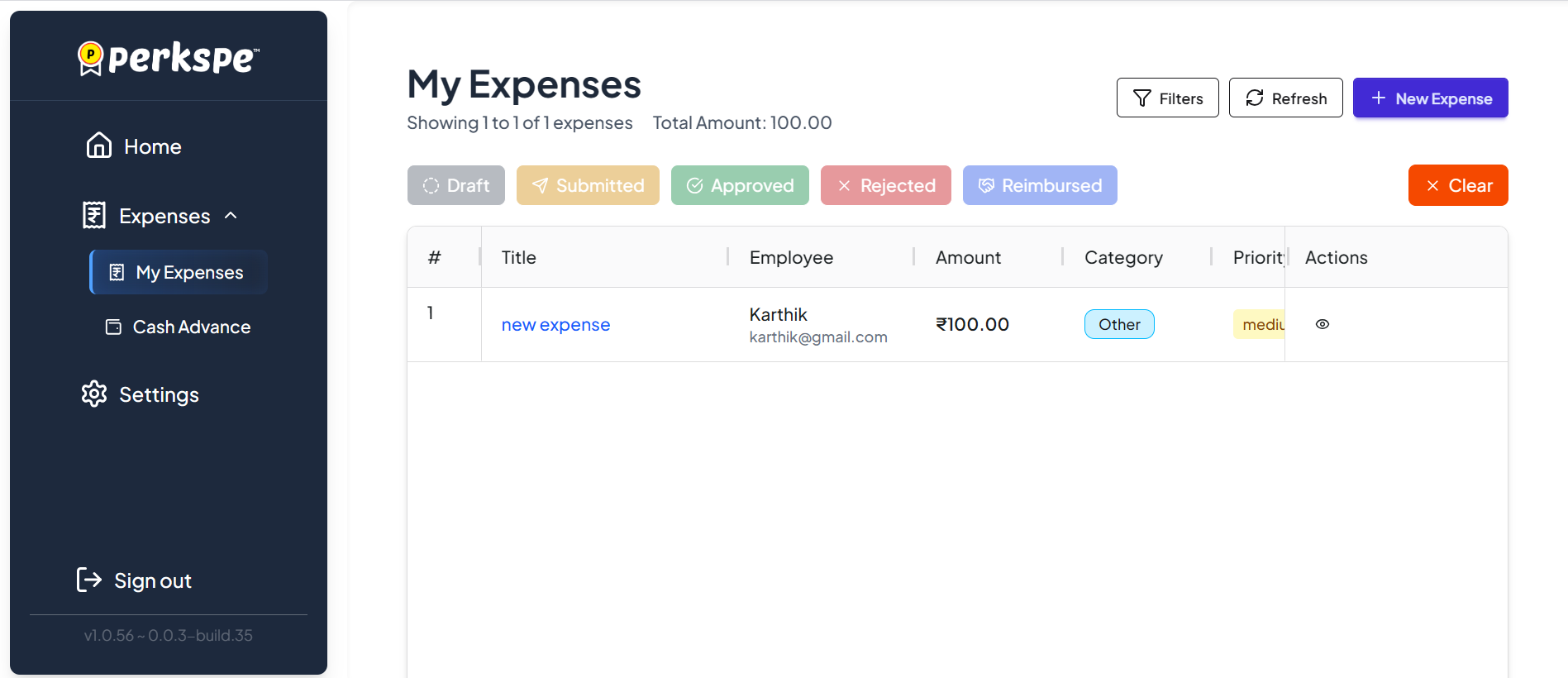
| Expenses → My Expenses | View, filter, and manage all your expense submissions |
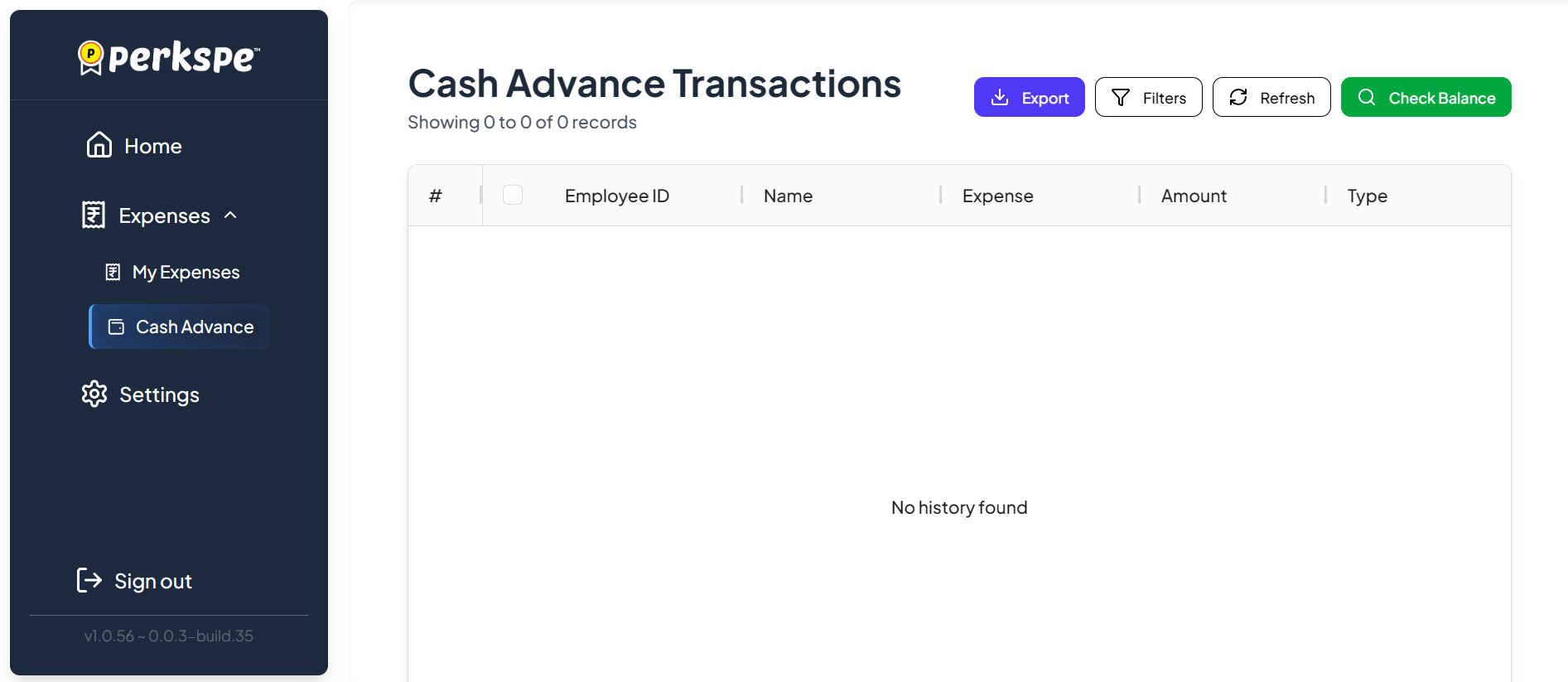
| Expenses → Cash Advance | Request and track cash advance payments |
| Settings | Update profile and reset password |
| Sign out | Log out securely |
What each status means
| Status | What it means | Your action |
|---|---|---|
| Draft | Saved but not submitted | Edit and submit when ready |
| Submitted | Sent to your approver | Wait for review — check comments |
| Approved | Accepted — reimbursement processing | No action needed |
| Rejected | Did not meet policy | Edit based on comments and Resubmit |
| Reimbursed | Payment sent to your bank | Done ✅ |
Typical Process: Submitted → Awaiting Approval → Approved → Reimbursed. The time taken for approval and reimbursement depends on your organization's approval and finance workflow.
Open Expenses → My Expenses from the sidebar to see your full expense history.
If your company allows cash advances, find them under Expenses → Cash Advance.
Click Settings in the sidebar, then the Profile tab to view your account details.
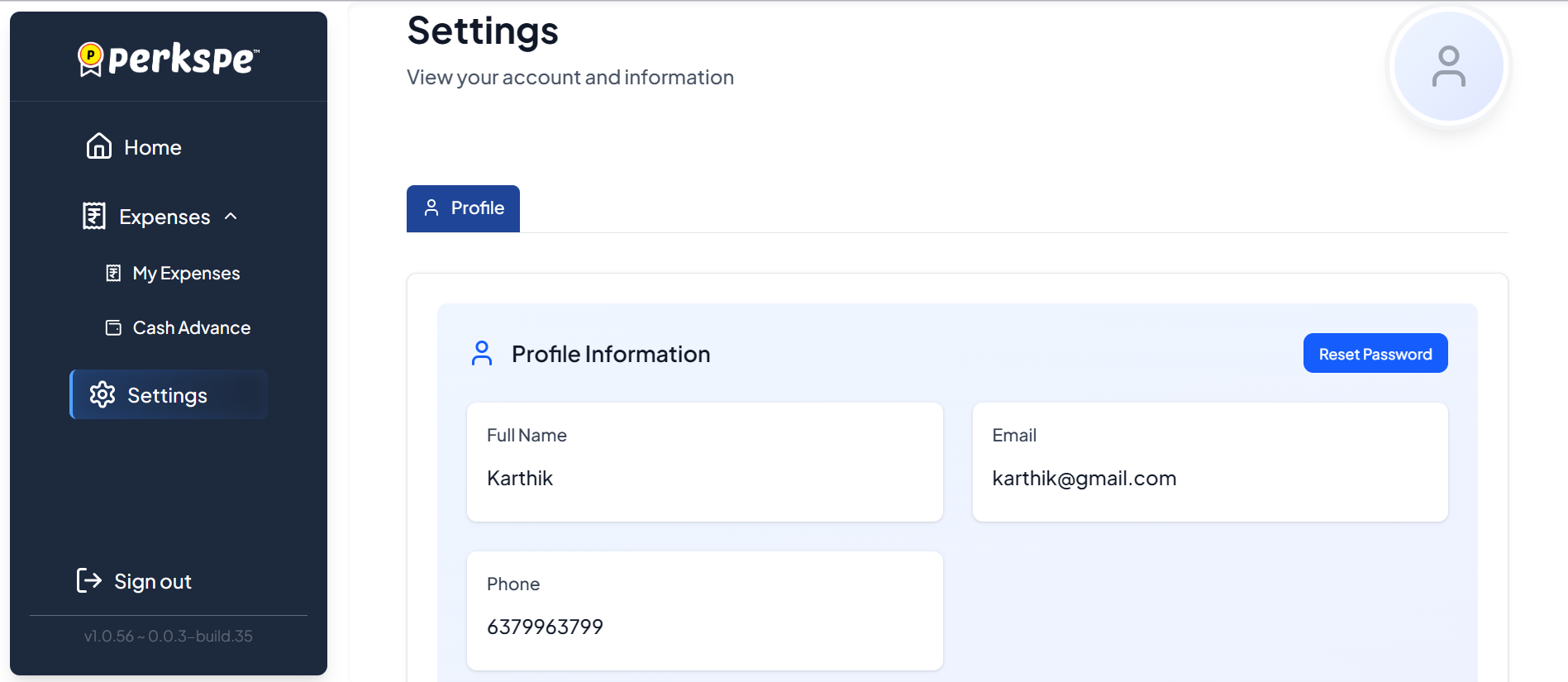
- Full Name, Email, and Phone — contact your HR admin to update these.
- Reset Password — change your login password anytime.
For mobile access, download the PerksPe app and complete KYC verification to activate your RuPay card.